0

How to change lock screen in Windows 8 Developer Preview

Windows 8 Developer Preview gives a feel of WP7 and we login it’s quite resembling that to lock screen of Wp7. With an image and slide up to type password to unlock and login. We can easily change the image sop coming on Lock Screen and can have our own rather than the default one. Just follow the steps:

Open Control Panel from the Start Screen and go to Personalize Settings in it.  You can see the current Lock Screen here with some image thumbnails down there. You can even choose from the default images so coming on the page or can have your own by clicking on Browse button so shown there.

Now select your choice of image and then click on Choose Image.
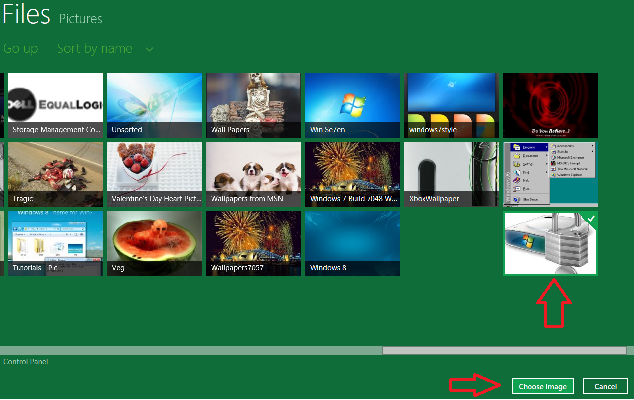
Phew done. So simple. Here is a complete list of articles on Windows 8.

Incoming search terms:
windows developer preview theme, how to unlock windows 8, change windows developer preview logon screen, widows 8, windows 8 unlock screen, win8 lock screen, unlock logon screen windows 8, how to change the windows devloper preview lock screen, how to change windows 8 unlock screen, how to unlock windows 8 home screen, unlock windows 8 screen, Windows 8 lock screen pictures where?, how to change windows developers, how to change windows developer theme, how to change windows developer preview logon screen, win 8 logon screen, windows 8 change lock screen, window 8 logon screen theme for windows 7, win8 select, windows developer preview lock screen pictures location, windows developer preview logon changer, chang logo screen in windows developerb preview, windowsdeveloper preview log on changer, logon screen changer for windows 8, change lock screen windows develope r preview, change lock screen windows developer preview, how to unlock windows 8 screen, skin windows developer 10, how to unlock windows 8 developer preview features, change logon screen windows developer preview
Filed in: Tips and Tricks, Windows 8 Tags: , , ,

Related Posts

Bookmark and Promote!

Leave a Reply

Submit Comment

© 2012 Unlock Windows. All rights reserved. XHTML / CSS Valid.
Proudly designed by Theme Junkie.