Windows 8 Developer brough so many changes in the User accounts too and one thing all we noticed is User Tile which shows picture chosen by us. It’s so easy to change the user tile of your account. Simply follow the steps:
Open Control Panel from Start Screen and then Go for Personalize Settings, click on User Tile.

Choose your option wither Browser if you want to choose image from your computer or Webcam if want to use live snap.
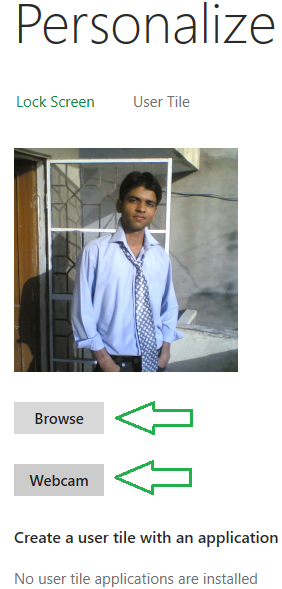
Now Select your image and then click Choose Image.
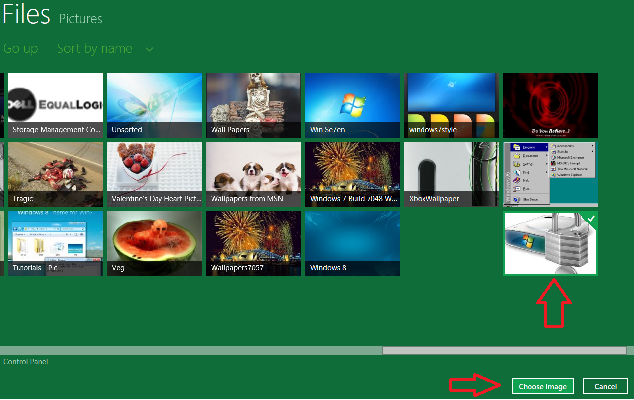
And you are done. Your User Tile has been changed.

Happy Windows Computing. Here is a complete list of articles on Windows 8.
Incoming search terms:windows 8 user tile, windows 8 user tiles, change user tile, windows 8 change tiles, user tile windows 8, windows developer preview user tile, user tiles, windows 8 developer preview user tile, change account picture windows 8, user tile, windows 8 change user picture, usertile, change user picture windows 8, change tiles windows 8, how to change user tile, user tiles für windows 8, windows 8 developer preview change user picture, win 8 user tiles, change user account picture windows 8, user tiles windows 8, how to change user picture windows 8, how to change tiles in windows 8, user tile application for windows 8, edit windows 8 tiles, how to change tiles on windows 8, windows 8 change user tile, win8 not change user tile, how to change user account image windows developer preview, windows 8 account picture, change user tile windows 8


